Read anything aloud
 Beyond the browser
ZonedIn Toolbar is an assistive technology toolbar for Windows. It combines text-to-speech, dictation, writing support, study skills tools and visual access features in a single application - working in every application outside your web browser, from Microsoft Word and email to PDFs and workplace systems. It comes with every ZonedIn licence, together with ZonedIn Browser, which does the same job for the web itself.
Every ZonedIn Toolbar feature works right across your desktop applications - Microsoft Word, email clients, PDFs, virtual learning environments and workplace systems - so support follows the user into whatever software their course or role requires. For the web itself, ZonedIn Browser provides the same kind of help.
ZonedIn Toolbar brings text-to-speech, dictation, writing support, study skills tools and visual access features together in a single application, available on Windows. It is included in every ZonedIn licence alongside ZonedIn Browser - one product, one installer, both tools.
ZonedIn Toolbar is appropriate where an assessment identifies needs arising from:
The table below maps the needs typically identified in an assessment to the ZonedIn Toolbar features that address them.
| Identified need | ZonedIn Toolbar feature |
|---|---|
| Difficulty reading extended text on screen | Whole-document and selected-text read-aloud in any application, with adjustable voice and speed and sentence skip controls |
| Inaccessible reading materials (scanned PDFs, images, locked-down applications) | Built-in accessible PDF reader with read-aloud; screenshot reader (OCR) that speaks text from images and inaccessible apps |
| Need to study away from the screen | Audio maker converting any text to MP3 for mobile listening |
| Difficulty with spelling, grammar and word retrieval | Word prediction while typing; spelling and grammar checker tuned to dyslexic error patterns; confusable words checker (their/there, affect/effect) |
| Difficulty producing written work by typing | System-wide dictation into any text field in any application |
| Difficulty retaining or understanding vocabulary | Talking dictionary with spoken definitions; picture dictionary; personal vocabulary list builder |
| Note-taking and revision difficulties | Highlight collection: gather highlighted passages from reading into a single document |
| Visual stress, glare sensitivity | Full-screen colour tint and mask with saturation, hue and invert control, applied across the whole display |
| Losing place while reading, visual tracking difficulty | Screen-wide reading ruler that follows the cursor; letterbox (pin hole) that dims all but the current band of text |
| Low vision, difficulty locating on-screen controls | Cursor magnifier with adjustable zoom showing real screen pixels; labelled outlines around all clickable controls; hover-speak announcing control names aloud |
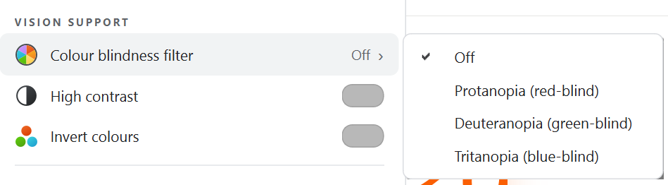
| Colour vision deficiency | One-click colour-blindness filters |
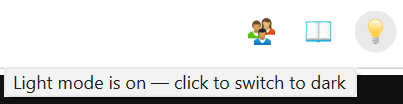
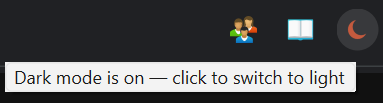
| Light sensitivity, preference for dark interfaces | One-click switch between light and dark mode |
| Language barrier compounding disability need | On-demand translation of selected text in any application |
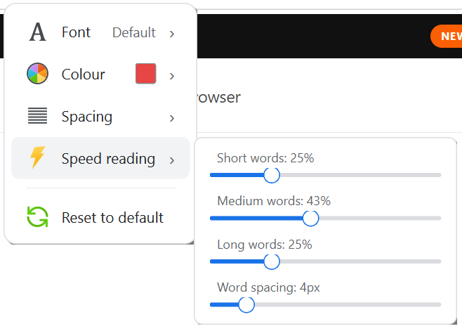
The screenshots below are taken in ZonedIn Browser, where these tools first shipped. ZonedIn Toolbar brings the same kinds of support - read-aloud, reading aids, colour and visual access - to every application outside your web browser.