New ZonedIn has just launched - the Browser and the Toolbar together in one licence. Try free for 7 days.
A guided tour

Every tool, in pictures. How each one looks — and what it does to the page.

Below you'll find every feature in ZonedIn, shown on a real web page (this one, in fact). Each tool sits on the always-visible toolbar at the top of the browser; one click opens its options and the page updates as you change them.

The toolbar

One bar. Every tool. Always visible.

ZonedIn's accessibility toolbar sits at the top of every window. The icons cover, from left to right: font and text controls, read-aloud and dictation, zoom, visual appearance, reading aids, cursor, page simplification and print.


The ZonedIn accessibility toolbar showing all main tool icons.
The ZonedIn toolbar.
Toolbar settings panel showing options for which tools are visible.
You can show or hide individual tools to suit how you use the browser.
Text & font

Make text easier to read.

Bigger, smaller, in your favourite font, in your favourite colour, with the spacing that suits your eyes. Each change takes effect immediately on the page you're reading.

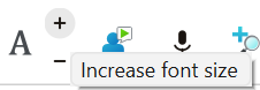
Toolbar showing the increase-font-size button.
Increase font size.
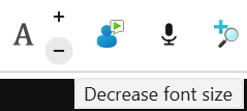
Toolbar showing the decrease-font-size button.
Decrease font size.
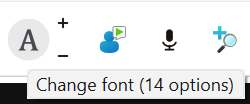
Toolbar showing the change-font button.
Change font.
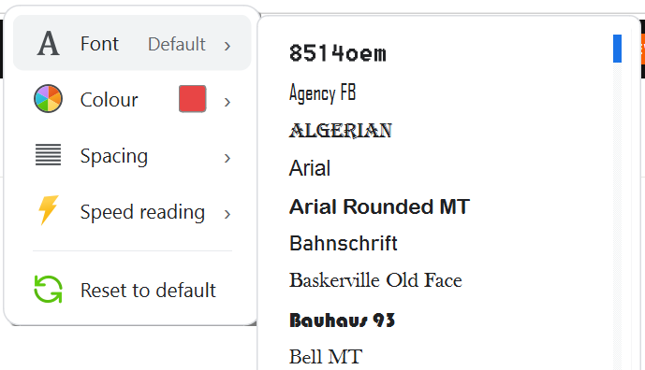
Font selection menu showing the choice of fonts available.
Pick from a curated list of fonts - including dyslexia-friendly options.
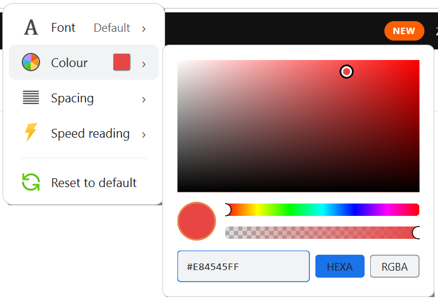
Font colour picker.
Set your own text colour for every page.
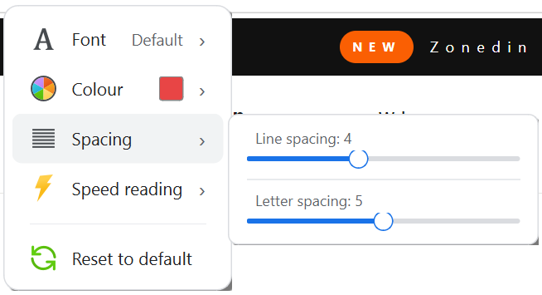
Font spacing controls - line spacing and letter spacing.
Adjust line and letter spacing for easier reading.
Zoom

Zoom in. Zoom out. Reset.

One control to scale the whole page up or down, with a quick reset button to snap back to 100% when you're done.

Zoom in, zoom out and reset controls on the toolbar.
Zoom controls live alongside the rest of the toolbar.
Visual appearance

Recolour the web to suit your eyes.

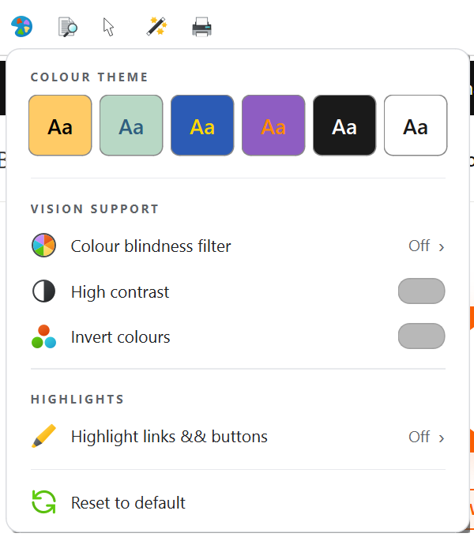
Pick from curated colour themes, switch on a colour-blindness filter, force high contrast or invert the page entirely. Whatever you choose lives on top of every site you open.

Toolbar showing the visual-appearance button.
The visual-appearance button on the toolbar.
Visual appearance panel: colour themes, vision support, highlight controls.
The options panel - themes, vision support, highlights.
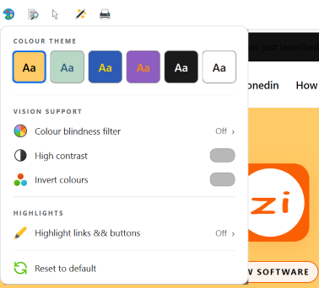
The page recoloured with a warm yellow theme.
A warm yellow theme applied to the page.
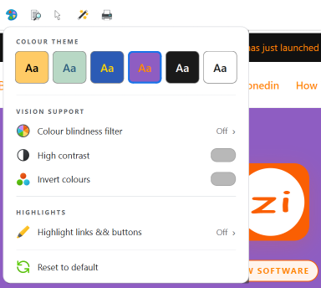
The page recoloured with a purple theme.
A purple theme applied to the same page.
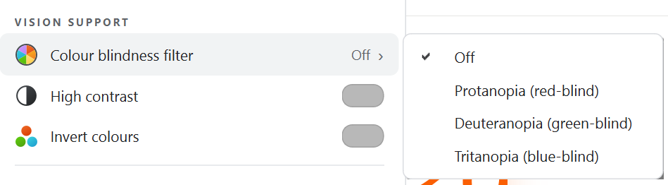
Colour blindness filter sub-menu listing protanopia, deuteranopia and tritanopia.
Filters for protanopia, deuteranopia and tritanopia.
Reading enhancements

Aids that help your eyes stay on the line.

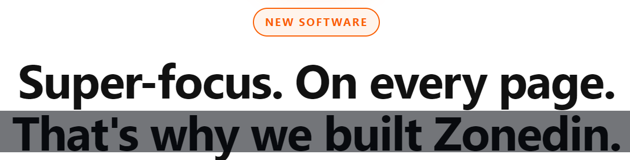
A letterbox dims everything except the strip you're reading. A ruler highlights the line itself. A screen mask tints the whole page. And a dyslexia-friendly font replaces the page's typography with something kinder to read.

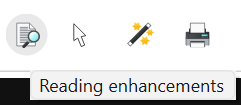
The reading-enhancements button on the toolbar.

Letterbox reading aid

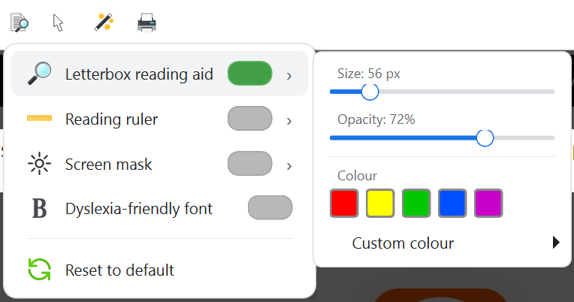
Letterbox options - size, opacity, colour.
Letterbox options: size, opacity, colour.
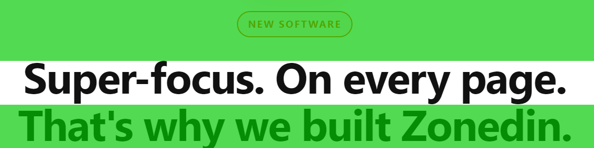
The page with a green letterbox dimming everything outside the reading strip.
The letterbox in action on this page.

Reading ruler

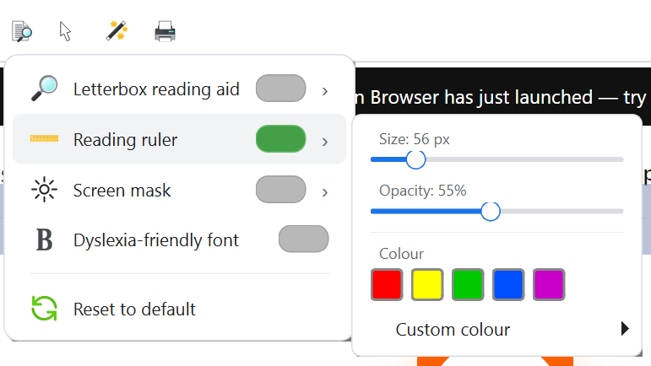
Reading ruler options - size, opacity, colour.
Ruler options: size, opacity, colour.
The page with a grey reading ruler highlighting the current line.
A reading ruler under the line.

Screen mask

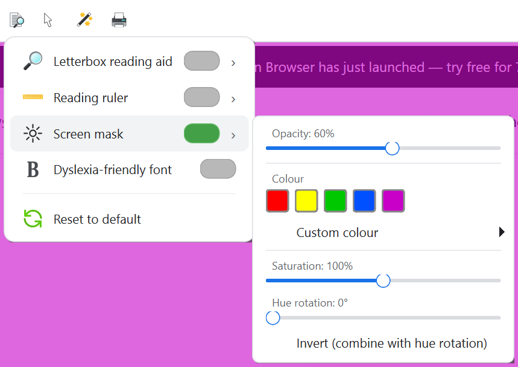
Screen mask options - opacity, colour.
Screen mask options.
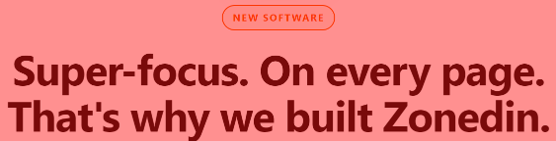
The page tinted with a screen mask.
The screen mask over the whole page.

Dyslexia-friendly font

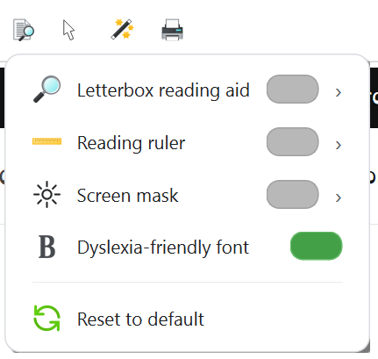
Dyslexia-friendly font toggle in the reading aids menu.
One toggle to switch fonts site-wide.
The page re-rendered in a dyslexia-friendly font.
This page rendered with the dyslexia-friendly font.
Cursor

A cursor you can actually see.

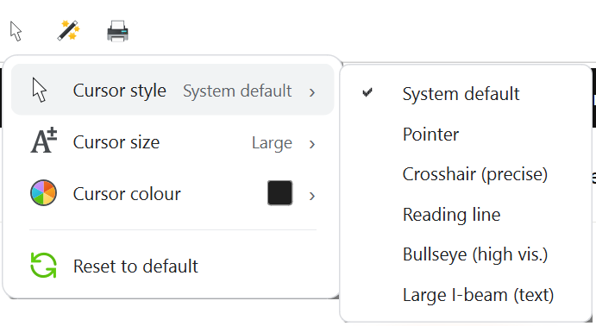
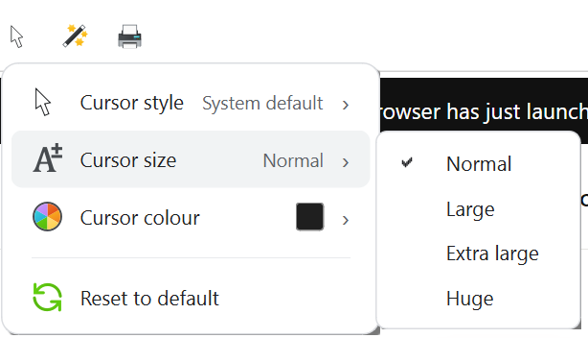
Several cursor styles, four sizes from normal up to huge, and any colour you like.

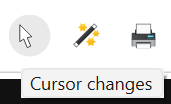
The cursor button on the toolbar.
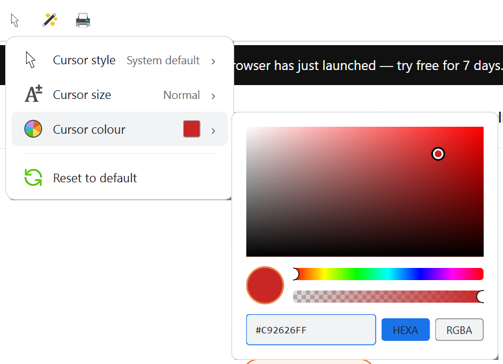
Cursor options panel - style, size, colour.
Cursor options: style, size, colour.
Cursor sizing sub-menu - normal, large, extra large, huge.
Sizes from normal to huge.
Cursor colour picker.
Pick the cursor colour that stands out for you.
Read aloud

Hear the page in a voice you choose.

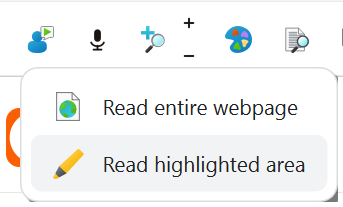
Press one button to read the whole page, or highlight a section first to read just that. Pick a voice and a pace that match how you take information in.

The text-to-speech button on the toolbar.
The read-aloud button on the toolbar.

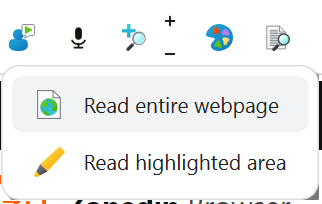
Read the whole page

Option to read the entire webpage.
One click reads the whole page.
The whole page being read aloud.
Read-aloud running on the page.

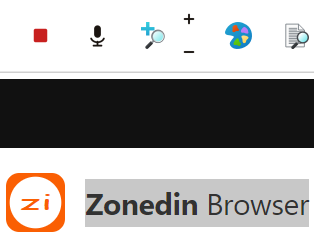
Read just what you've highlighted

Option to read only the highlighted area.
Or read only the selection.
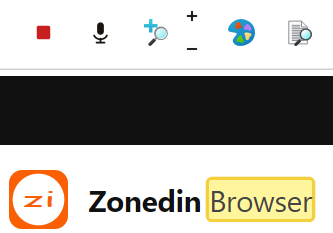
A selected area being read aloud.
Highlight a paragraph and only that gets read.
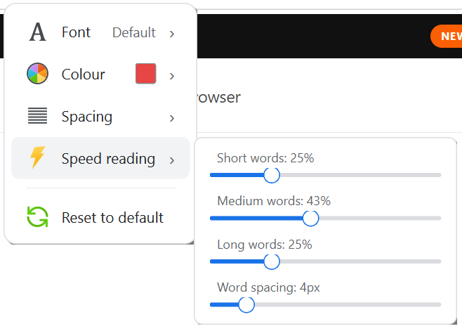
Speech speed control - slower / faster.
Set the speaking pace.
Dictation & voice

Speak instead of typing.

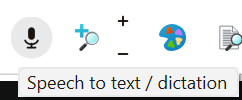
Click the microphone (or just say "Hey ZonedIn") and dictate into the address bar, into a form, or give the browser a command - "go to Google", "open my bookmarks". A floating bubble shows what's being heard.

The speech-to-text / dictation button on the toolbar.
The dictation button on the toolbar.
Simplify page

Strip the page back to what you came for.

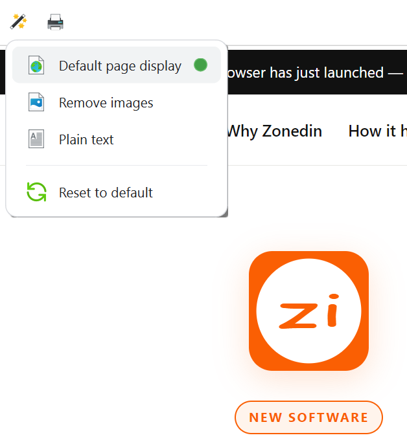
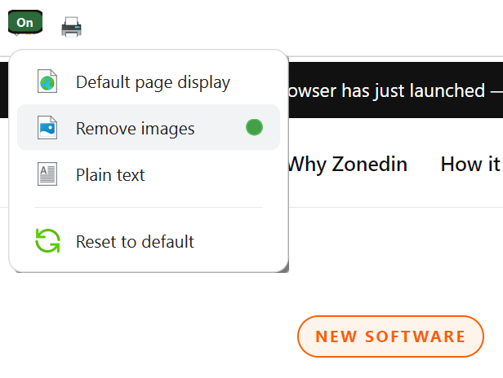
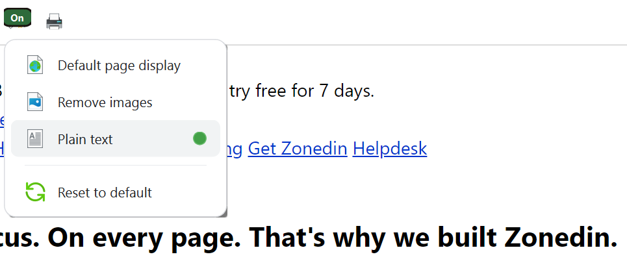
Three modes: leave the page as it is, hide the images for a quieter view, or strip it back to plain text so the words are all that's left.

The simplify-page button on the toolbar.
The simplify button on the toolbar.
Default page display option.
Default - page as designed.
Remove images option.
Remove images.
Plain text option.
Plain text only.
Light & dark

A theme that suits the time of day.

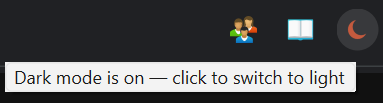
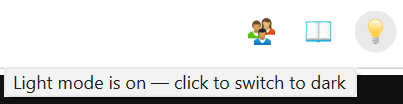
Switch between light and dark chrome with one click. The browser's own controls follow you.

Toolbar in light mode.
Light mode.
Toolbar in dark mode.
Dark mode.
Personal touches

The rest of the toolbar.

Profiles, dictionary lookup, settings, print and an About page - the everyday tools that round out the browser.

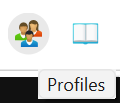
Profile button on the toolbar.
Profiles - save and switch your setup.
Dictionary button on the toolbar.
Dictionary lookup.
Settings button on the toolbar.
Settings.
Print button on the toolbar.
Print.
About button on the toolbar.
About.
Try it for yourself.
Pictures only go so far. Pick up a free 7-day trial key and see how it feels on the sites you actually visit.